Skip to content
View in the app

A better way to browse. Learn more.

Tip.It Forum

A full-screen app on your home screen with push notifications, badges and more.

To install this app on iOS and iPadOS
  1. Tap the Share icon in Safari
  2. Scroll the menu and tap Add to Home Screen.
  3. Tap Add in the top-right corner.
To install this app on Android
  1. Tap the 3-dot menu (⋮) in the top-right corner of the browser.
  2. Tap Add to Home screen or Install app.
  3. Confirm by tapping Install.

101: 80+ Stats. Again!
(0 reviews)

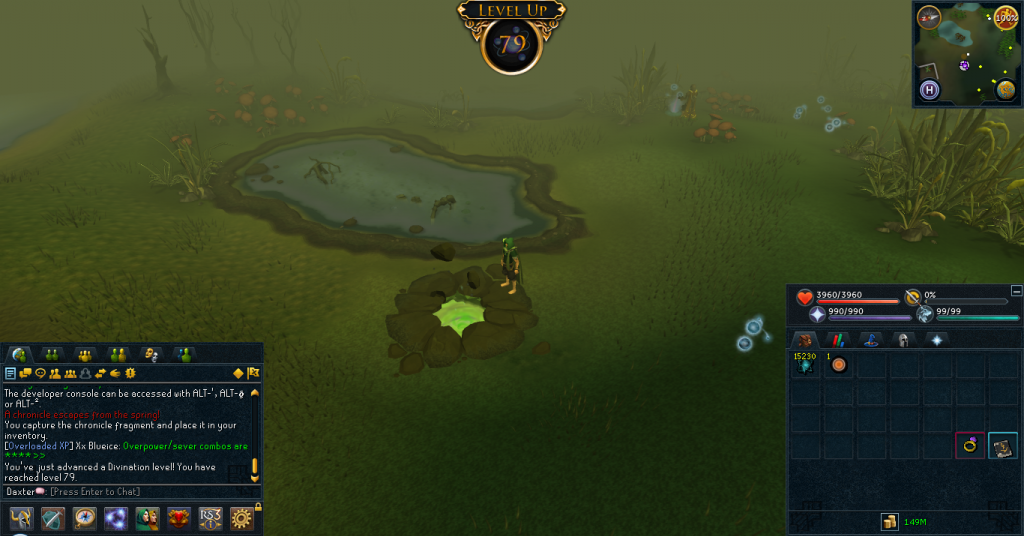
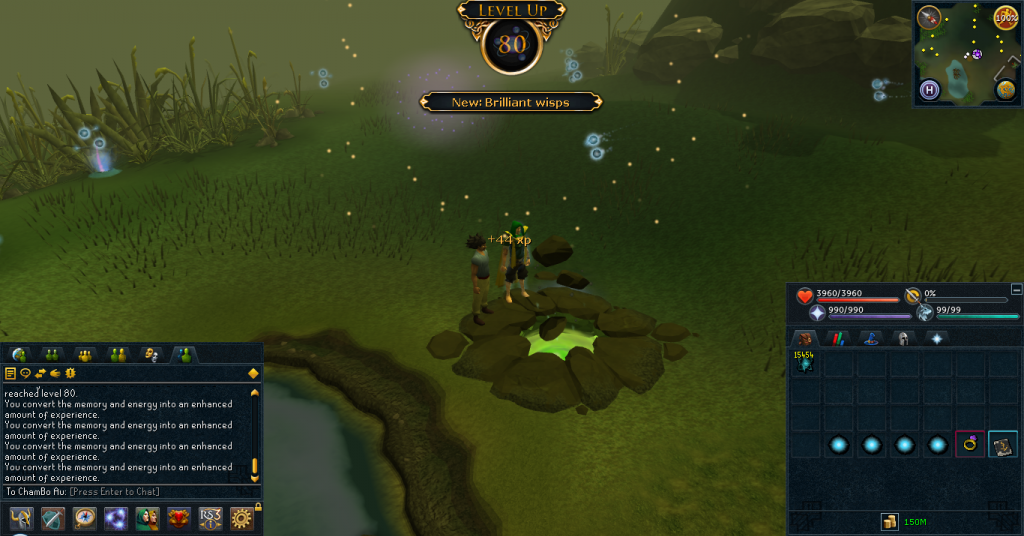
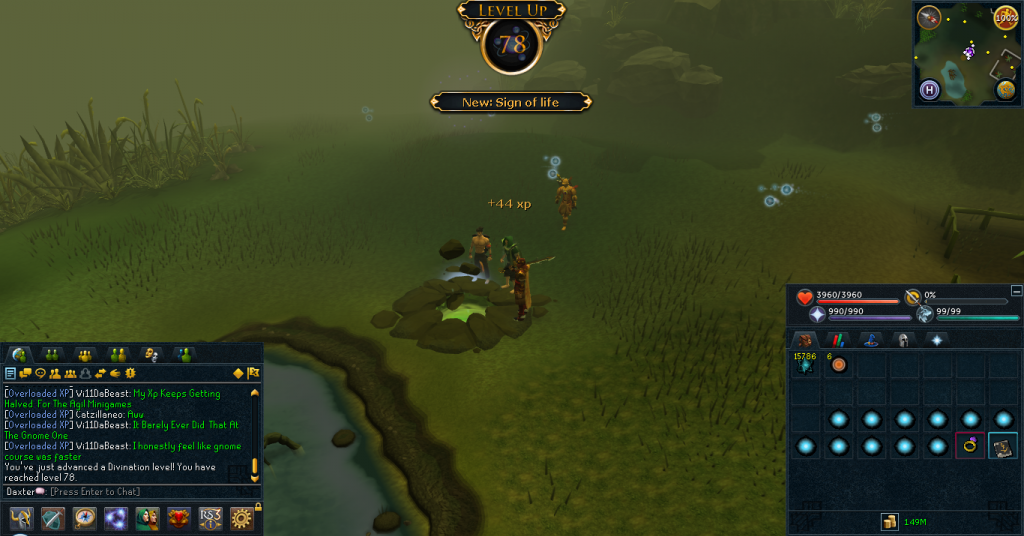
OH MAN. GOD DAMN. Closed the tab accidentally after typing up this entry. eh. 80+ stats. lots of div. here's pictures
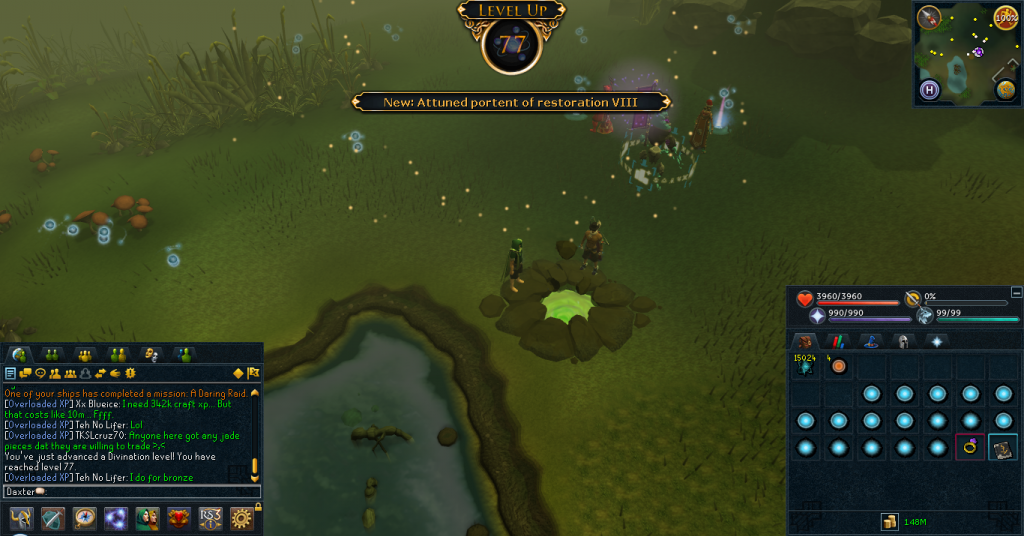
 

77Divination_zpse8ed3793.png

78Divination_zps95c769ec.png

79Divination_zpsd78f5888.png

80Divination_zps4bad4d8b.png


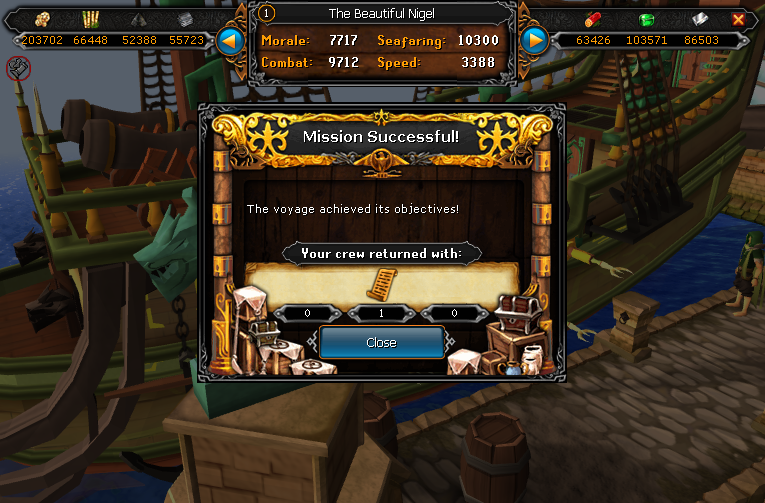
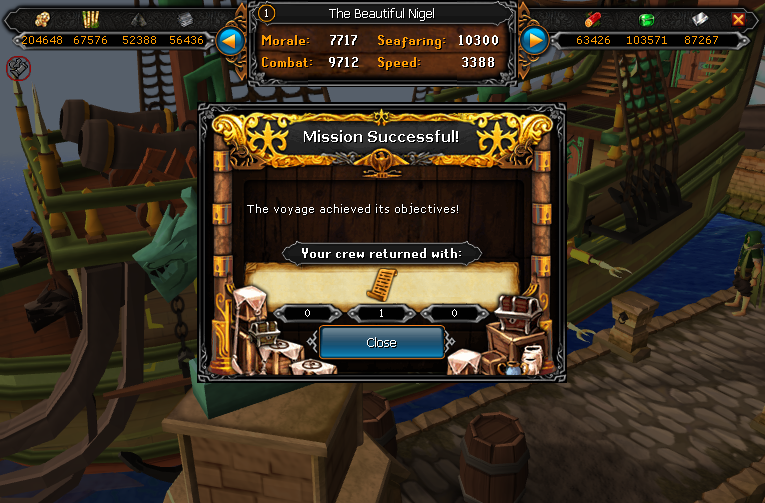
scroll pieces. six to go


Rock-CrushingScrimshawScroll01_zpse7a17f79.png

Rock-CrushingScrimshawScroll02_zps6bb2a0e7.png


Only had three scroll piece voyages this week, failed one. :c Argh. Closing that tab really set me off. Anyway, catch you next time, ~Dax.

0 Comments

Recommended Comments

There are no comments to display.

Important Information

By using this site, you agree to our Terms of Use.

Account

Navigation

Search

Search

Configure browser push notifications

Chrome (Android)
  1. Tap the lock icon next to the address bar.
  2. Tap Permissions → Notifications.
  3. Adjust your preference.
Chrome (Desktop)
  1. Click the padlock icon in the address bar.
  2. Select Site settings.
  3. Find Notifications and adjust your preference.