Skip to content
View in the app

A better way to browse. Learn more.

Tip.It Forum

A full-screen app on your home screen with push notifications, badges and more.

To install this app on iOS and iPadOS
  1. Tap the Share icon in Safari
  2. Scroll the menu and tap Add to Home Screen.
  3. Tap Add in the top-right corner.
To install this app on Android
  1. Tap the 3-dot menu (⋮) in the top-right corner of the browser.
  2. Tap Add to Home screen or Install app.
  3. Confirm by tapping Install.

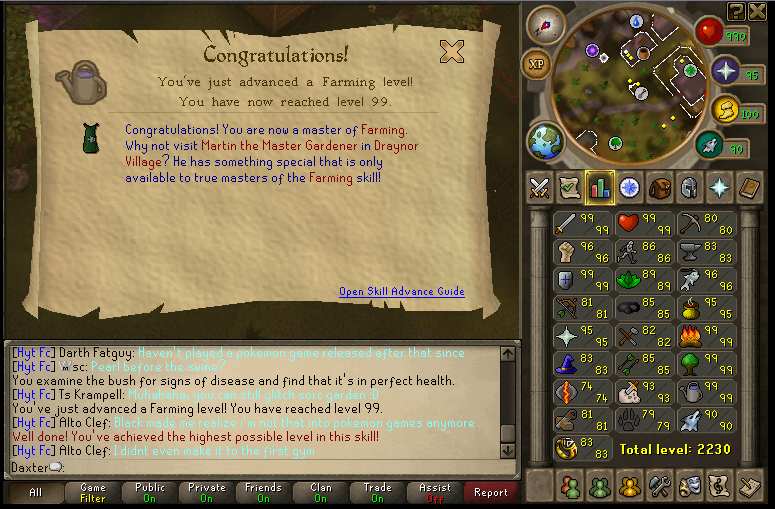
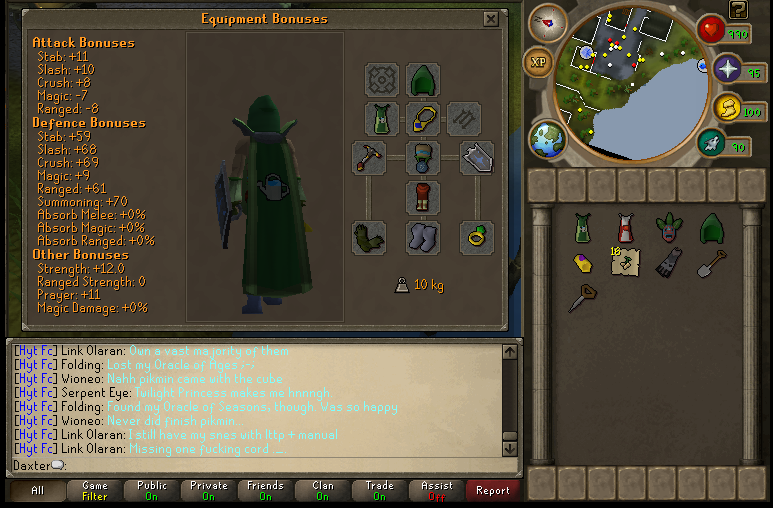
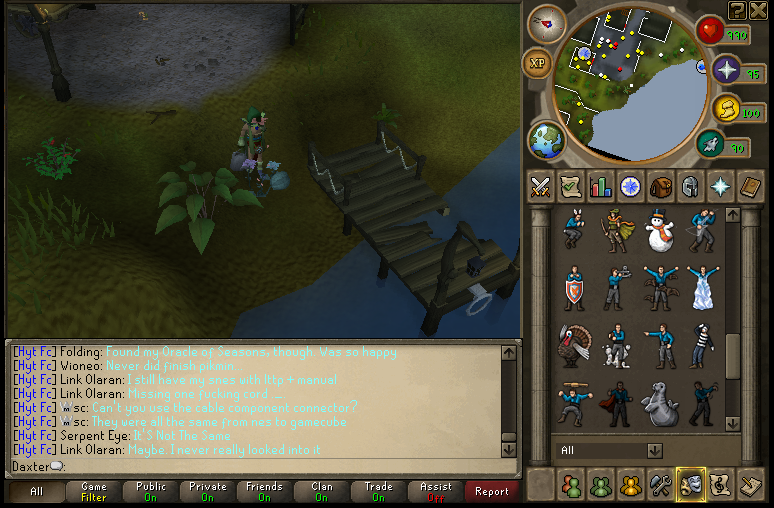
#6: 99 Farming.

(0 reviews)

9901-1.png

9902-1.png

9903-1.png


Derped and accidentally got rid of the actual 99 screen, but ah well. Here it is. Next planned? Fishing/Cooking or Strength. Fishing and Cooking seems a lot more likely, as I've grown somewhat tired of combat recently (My two 99's before Farming being Attack and HP). I also do plan to fish all day this coming Friday, whilst watching Star Wars through for the first time. Plus they're less stressful and I can multi-task in many more ways than just Star Wars. Catch you next time, ~Dax.

4 Comments

Recommended Comments

Bows

Members

Congrats bud. Turn anti-aliasing on for the love of God.

Dax

Members

My computer doesn't like me when I do that. :c

Jeffwilson99

Members

Yeeeah Nice work Daxxxy boy!

H2PM

Members

<3

Important Information

By using this site, you agree to our Terms of Use.

Account

Navigation

Search

Search

Configure browser push notifications

Chrome (Android)
  1. Tap the lock icon next to the address bar.
  2. Tap Permissions → Notifications.
  3. Adjust your preference.
Chrome (Desktop)
  1. Click the padlock icon in the address bar.
  2. Select Site settings.
  3. Find Notifications and adjust your preference.